California State University, Sacramento - Department of Computer Science
CSC 133 - Object-Oriented Computer Graphics Programming
ASSIGNMENT 2: GUI & DESIGN PATTERN
By KC Kwan (Summer23)
Introduction
The goal of this second assignment is to extend your game from A1 to incorporate several important design patterns, and
a Graphical User Interface (GUI). The rest of the game will be similar to the one in A1. You must reuse your A1 code and
build your A2 on top of it. At the end, you need to submit a UML for the code.
Before you start
Before you start coding the A2, we first need to disable some old feature in A1: In the SacRun class, we do not need to call
the A1 () method anymore. Hence, we need to comment it and do not use text field for the control inputs anymore. You
need to create a new A2 () function to create a new GUI in this assignment.
Graphical User interface
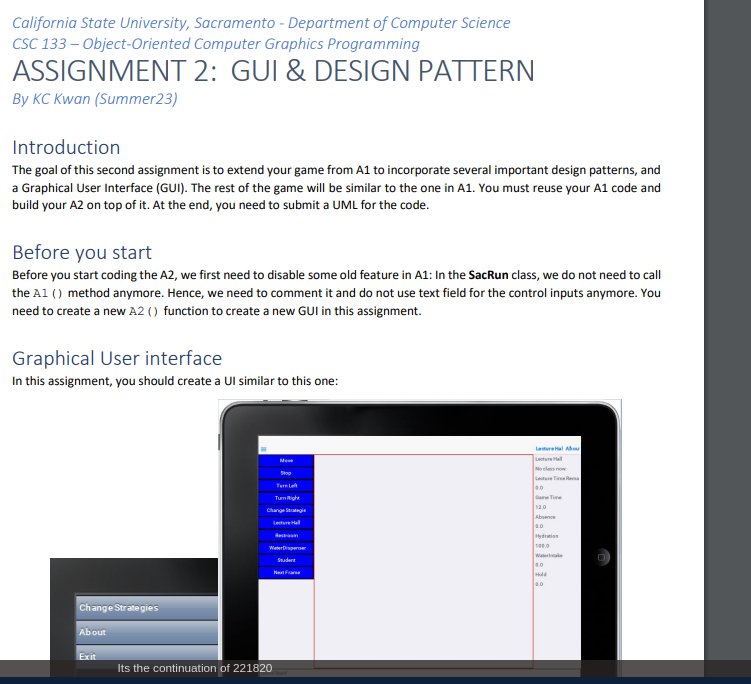
In this assignment, you should create a UI similar to this one:
Change Strategies
About
Exit
Move
Stop
Turn Left
Turn Right
Change Strategi
Water Disperser
Student
Its the continuation of 221820
LestureHal About
Lecture
No class now
Lecture Tire Re
Game Time
12.0
Absence
4.0
Hydration
Waterke
4.0
Hold
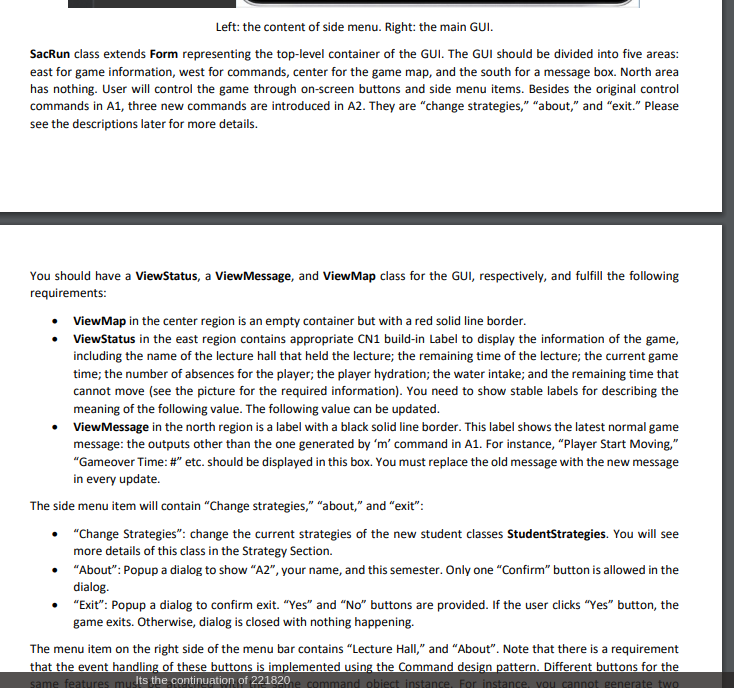
4.0/nLeft: the content of side menu. Right: the main GUI.
SacRun class extends Form representing the top-level container of the GUI. The GUI should be divided into five areas:
east for game information, west for commands, center for the game map, and the south for a message box. North area
has nothing. User will control the game through on-screen buttons and side menu items. Besides the original control
commands in A1, three new commands are introduced in A2. They are "change strategies," "about," and "exit." Please
see the descriptions later for more details.
You should have a ViewStatus, a ViewMessage, and ViewMap class for the GUI, respectively, and fulfill the following
requirements:
ViewMap in the center region is an empty container but with a red solid line border.
• ViewStatus in the east region contains appropriate CN1 build-in Label to display the information of the game,
including the name of the lecture hall that held the lecture; the remaining time of the lecture; the current game
time; the number of absences for the player; the player hydration; the water intake; and the remaining time that
cannot move (see the picture for the required information). You need to show stable labels for describing the
meaning of the following value. The following value can be updated.
• ViewMessage in the north region is a label with a black solid line border. This label shows the latest normal game
message: the outputs other than the one generated by 'm' command in A1. For instance, "Player Start Moving,"
"Gameover Time: #" etc. should be displayed in this box. You must replace the old message with the new message
in every update.
The side menu item will contain "Change strategies," "about," and "exit":
•
"Change Strategies": change the current strategies of the new student classes StudentStrategies. You will see
more details of this class in the Strategy Section.
"About": Popup a dialog to show "A2", your name, and this semester. Only one "Confirm" button is allowed in the
dialog.
•
"Exit": Popup a dialog to confirm exit. "Yes" and "No" buttons are provided. If the user clicks "Yes" button, the
game exits. Otherwise, dialog is closed with nothing happening.
•
The menu item on the right side of the menu bar contains "Lecture Hall," and "About". Note that there is a requirement
that the event handling of these buttons is implemented using the Command design pattern. Different buttons for the
same features musits the continuation of 221820 e command object instance. For instance, you cannot generate two/n"Exit": Popup a dialog to confirm exit. "Yes" and "No" buttons are provided. If the user clicks "Yes" button, the
game exits. Otherwise, dialog is closed with nothing happening.
The menu item on the right side of the menu bar contains "Lecture Hall," and "About". Note that there is a requirement
that the event handling of these buttons is implemented using the Command design pattern. Different buttons for the
same features must be attached with the same command object instance. For instance, you cannot generate two
Command instances for the "about" buttons in west region and sidebar.
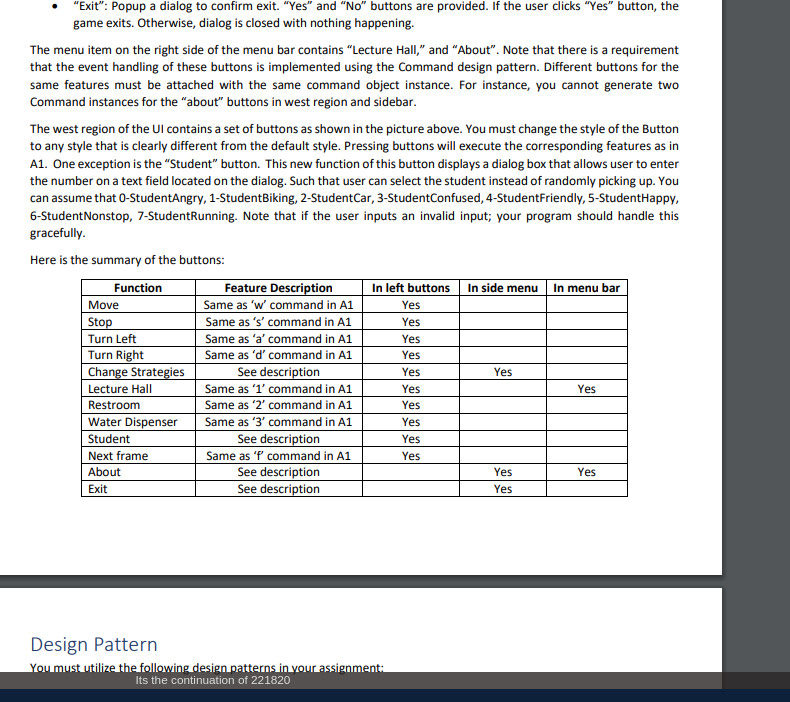
The west region of the UI contains a set of buttons as shown in the picture above. You must change the style of the Button
to any style that is clearly different from the default style. Pressing buttons will execute the corresponding features as in
A1. One exception is the "Student" button. This new function of this button displays a dialog box that allows user to enter
the number on a text field located on the dialog. Such that user can select the student instead of randomly picking up. You
can assume that 0-StudentAngry, 1-StudentBiking, 2-Student Car, 3-StudentConfused, 4-StudentFriendly, 5-StudentHappy,
6-StudentNonstop, 7-StudentRunning. Note that if the user inputs an invalid input; your program should handle this
gracefully.
Here is the summary of the buttons:
Function
Move
Stop
Turn Left
Turn Right
Change Strategies
Lecture Hall
Restroom
Water Dispenser
Student
Next frame
About
Exit
Feature Description
Same as 'w' command in A1
Same as 's' command in A1
Same as 'a' command in A1
Same as 'd' command in A1
See description
Same as '1' command in A1
Same as '2' command in A1
Same as '3' command in A1
See description
Same as 'f' command in A1
See description
See description
In left buttons In side menu
Yes
Yes
Yes
Yes
Yes
Yes
Yes
Design Pattern
You must utilize the following design patterns in your assignment:
Its the continuation of 221820
Yes
Yes
Yes
Yes
Yes
Yes
In menu bar
Yes
Yes/nDesign Pattern
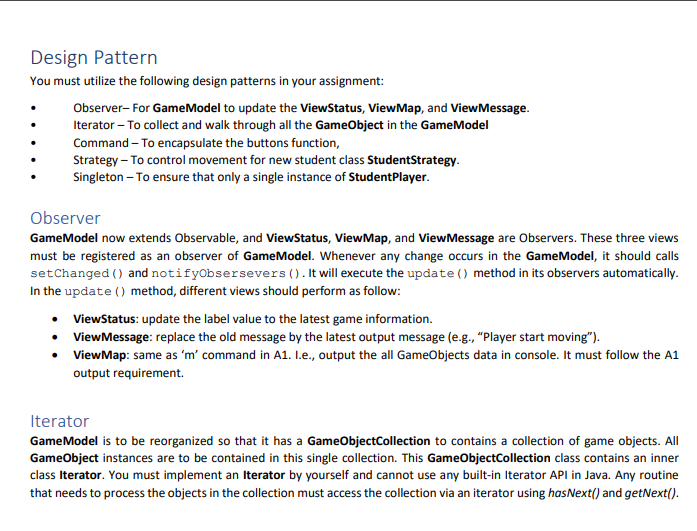
You must utilize the following design patterns in your assignment:
Observer-For GameModel to update the ViewStatus, ViewMap, and ViewMessage.
Iterator - To collect and walk through all the GameObject in the GameModel
Command - To encapsulate the buttons function,
Strategy - To control movement for new student class StudentStrategy.
Singleton - To ensure that only a single instance of StudentPlayer.
Observer
GameModel now extends Observable, and ViewStatus, ViewMap, and ViewMessage are Observers. These three views
must be registered as an observer of GameModel. Whenever any change occurs in the GameModel, it should calls
setChanged () and notifyObsersevers (). It will execute the update () method in its observers automatically.
In the update () method, different views should perform as follow:
•
ViewStatus: update the label value to the latest game information.
ViewMessage: replace the old message by the latest output message (e.g., "Player start moving").
ViewMap: same as 'm' command in A1. I.e., output the all GameObjects data in console. It must follow the A1
output requirement.
Iterator
GameModel is to be reorganized so that it has a GameObjectCollection to contains a collection of game objects. All
GameObject instances are to be contained in this single collection. This GameObjectCollection class contains an inner
class Iterator. You must implement an Iterator by yourself and cannot use any built-in Iterator API in Java. Any routine
that needs to process the objects in the collection must access the collection via an iterator using hasNext() and getNext()./nCommand
The approach you must use for implementing button action is to create command classes extend the CN1 build-in
Command class. actionPerformed () in command class will call the appropriate method in the GameModel. Note
that it is required to group multiple buttons' feature together into multiple command classes. In other words, you must
implement 2-3 classes that extend Command for handling the button action. Note that some same controls can be invoked
using multiple buttons; it is a requirement that only one command object be created for each command and that the same
command object be invoked from each different button. It is a requirement that any Command object must only call one
encapsulated method (i.e., only one-line of code) in GameModel.
Strategy
There is a new class Student Strategy, which extends from Student. You need to create two StudentStrategy in the
GameModel. StudentStrategy will be controlled using strategies design pattern. It means that, by clicking "Change
Strategies" button, Student Strategy can switch to a random strategy class to change its behavior anytime. Note that for
the output of Student Strategy, you must display the information like other Student child class (not StudentPlayer) with
an additional current strategy name. To make A2 simple, there are three different simple strategies. These strategies make
Student Strategy move (1) randomly like StudentConfused, (2) vertically, (3) horizontally. You must use OO way to
implement Strategy. For example, you can achieve it by calling apply () method in the current strategy class of
StudentStrategy to setting its head before the move ().
Singleton
There can be one and only one instance of StudentPlayer in this game. To avoid misusing this class, you must use Singleton
design pattern for this class./nSingleton
There can be one and only one instance of StudentPlayer in this game. To avoid misusing this class, you must use Singleton
design pattern for this class.
Additional Notes
• In A2, set the width and height of the GameModel to the resolution of the ViewMap at the center. You need
to check the ViewMap's size on the screen using programming after it is shown on the GUI.
All the GameObject positions must be initially assigned within the new boundary randomly.
The Student Class must be an abstract class.
In A2, you now also need to initialize one StudentConfused and Student Nonstop at the start of the game.
You must use OO way for setting the styling of all buttons and implement the design pattern.
In this assignment, you need to draw a UML for your code. You can use any tool to draw your UML and output
your UML as a pdf file. Note that some UML tools may have different UML. You need to use the one the same as
in the lecture notes. We recommend you use violet. You need to include all your defined classes and the extended
built-in class. For the extended built-in class, class name is sufficient.
Hints
• By default, the button background is completely transparent. You can use setBgTransparency () to set it
back to visible.
•
•
When you attach a Command class to a button, the command string will become the label on the button.
The size of the component is defined by the content in it when it was show (). To refresh the size of it after
changing the content, you can call revalidate().
To exit the system, you can use CN. exitApplication ().
Observer and Observable are the built-in interface and class in Java. To register Observer, you can use the built-
in method addObserver (Observer observer) of the Observable.
•
Any built-in Component class in CN1 has built-in function getWidth (), getHeight (), setWidth () and
setHeight (). They are important functions for the GUI in CN1. Do not overridden them.